Assay Guide
Three assays. One workflow. Upload images, organize into groups and time points/plates, and export. Here's the step-by-step for each.
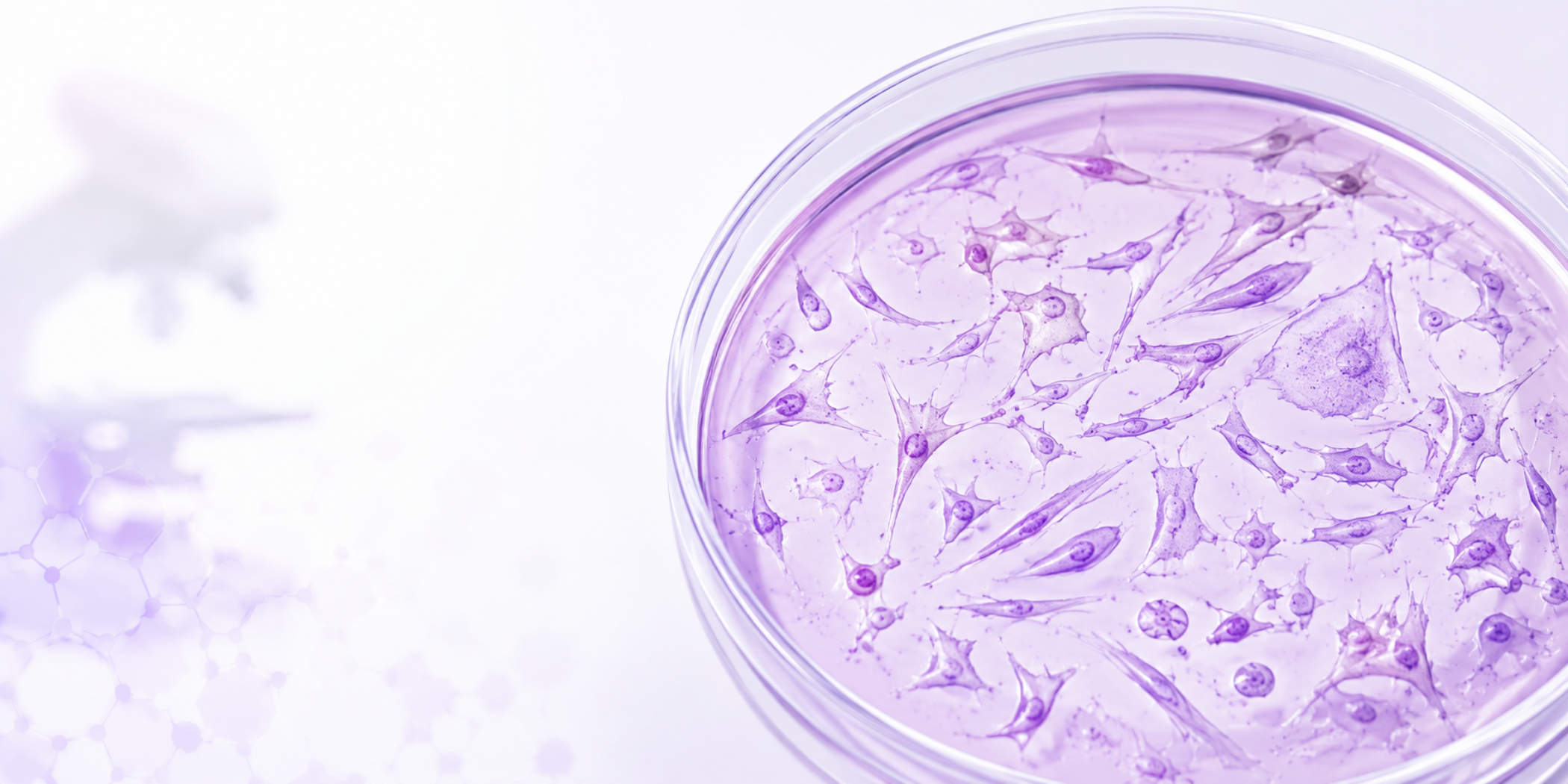
Cell Growth Assay
Adherent cells. Brightfield. No stain
What it measures: Confluency (% of surface covered by cells) and adherent cell count, from the same brightfield image, in a single run.
When to use it: Tracking how adherent cells grow over time. Measuring doubling time. Assessing a drug or treatment’s effect on proliferation. Monitoring morphology changes. No staining or fixation needed.
In snapcyte
- Lock magnification, exposure, and focus. Capture multiple fields per well
- Open Cell Growth → create new experiment
- Upload all images
- Organize images to groups (conditions) and time points/plates if needed
- Draw an ROI on each image if needed. Two wells in one image? Draw two ROIs
- Set scale to get cell density (cells/cm²), if needed
- Spot-check 5-10 images. The overlay shows exactly which objects were counted.
- Export to Excel for further analysis.
Cell Count= 212
Cell Confluency= 68%
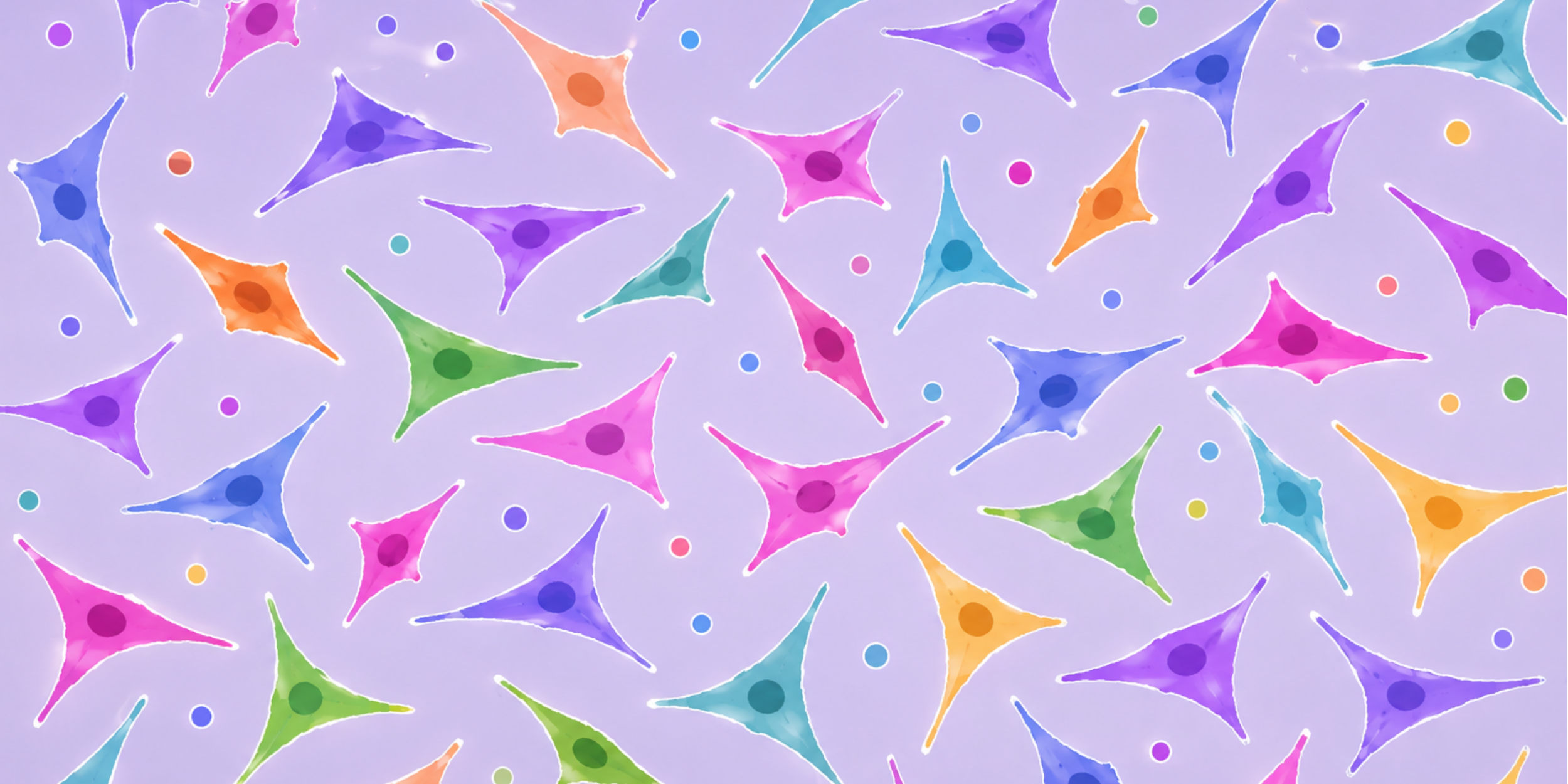
Hemocytometer Count
Suspension cells. Trypan blue staining
What it measures: Total cell count, live cell count, dead cell count (if Trypan Blue is used), and cells/mL from hemocytometer images.
When to use it: Before seeding (to hit your target density). After trypsinization. Checking viability after a freeze-thaw. Tracking counts over the course of an experiment. If your cells are adherent and you want a count without trypsinizing, use Cell Growth instead; it reads count directly from your brightfield image.
In snapcyte
- Use a single-cell suspension. Clumps are the #1 cause of miscounts.
- Take pictures of all squares in hemocytometer at 10X
- Open Hemocytometer count → create new experiment
- Upload all images at once. We recommend organizing all squares of one sample into one group.
- In Assay setting turn the Trypan Blue toggle on and set your dilution factor.
- Draw an ROI on each square of the hemocytometer
- Spot-check 1-2 images. The overlay shows exactly which objects were counted as Live/Dead.
- In results you can view average value for each sample.
Total Count= 144
Live Cells= 38
Viability= 26%
Cell/ML= 2.9e+6
Invasion Assay
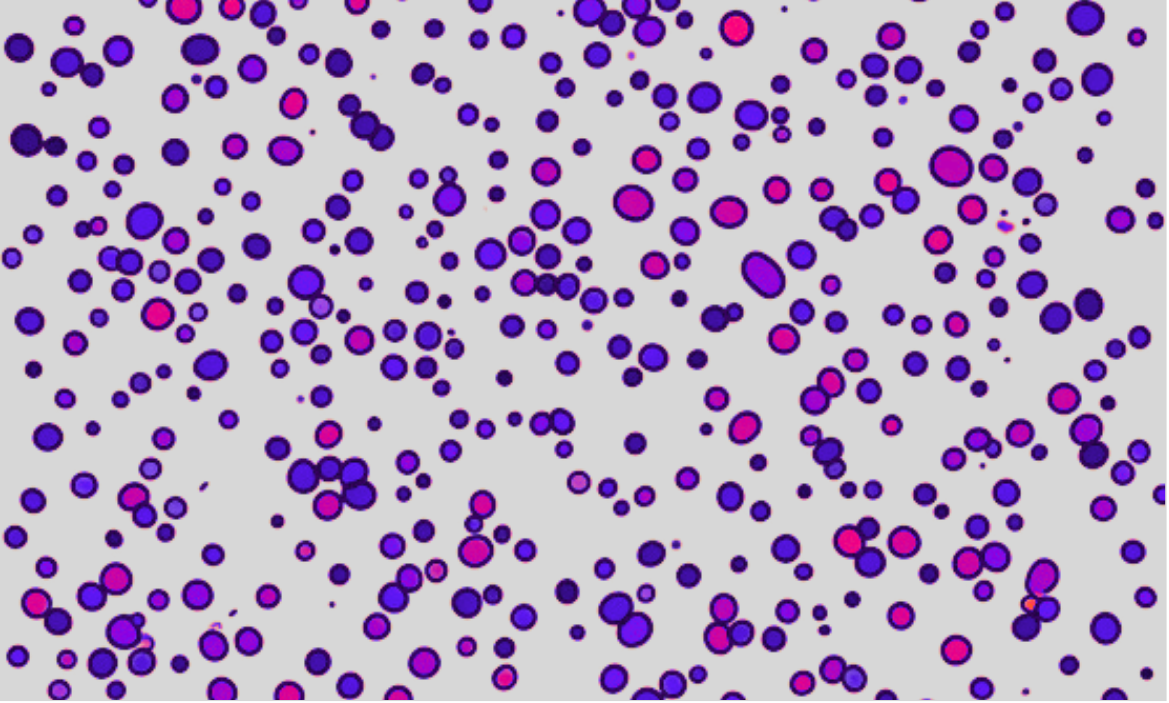
Transwell Chamber. Crystal Violet
What it measures: The percentage of membrane area covered by crystal violet-stained cells that migrated through a transwell insert.
When to use it: Comparing invasiveness across treatment conditions or cell lines. Measuring the effect of a drug on invasion. Any transwell or Boyden chamber experiment stained with crystal violet
In snapcyte
- Wash until background is visually clear before imaging. Excess crystal violet on the membrane is the single most common source of error.
- Take 4 images per well at 10x. Easiest method: leave the membrane in the well and image directly
- Open Invasion/Migration Assay→ create new experiment
- Upload all images and assign to groups (treatment vs. control, cell lines, etc.)
- We auto detect the light region if images have a dark black background. The result in the whole image is including the black areas and ROI results are just the region with the cells.
- Spot-check 1-2 images. The overlay shows exactly which objects were counted stained cells.
- Export your values in excel for further analysis.
Stained Cell Area= 64%